
Assistence & Support
Every question deserves a SI.
We never leave you halfway through a problem.
If you have a question about your device, the answer starts here. If you need to go further, your trusted reseller is the natural next step: they know your configuration and can support you closely.
Answers to frequently asked questions
You can find the serial number either on the warranty certificate or on the label under the barcode (see example).
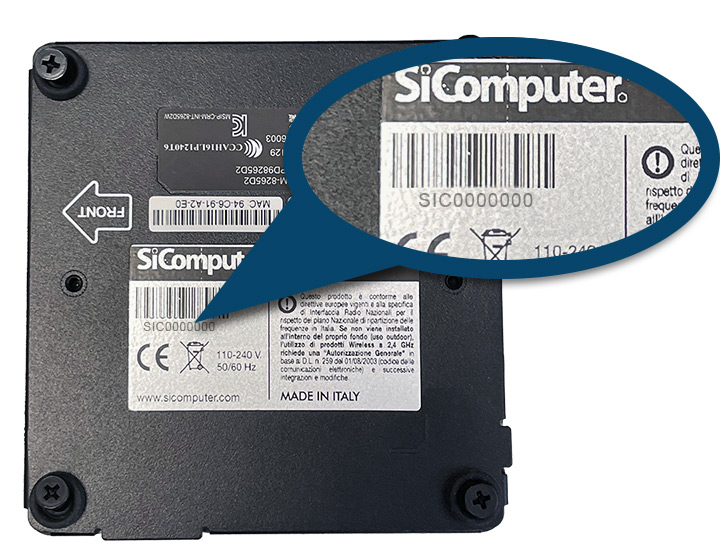
The serial number of the SiComputer device
You can find all the system drivers on your PC by following this path: C:\Windows\Si_Drv
Instructions on how to recover the drivers for your device components can also be found in the warranty certificate included in the package. If you have lost it and/or your computer has been completely formatted, you can write to assistenza@sicomputer.it and request the drivers. It is essential to include the serial number found either in the warranty certificate or on the label under the barcode (see example).
The serial number of the SiComputer device
To register your warranty, you will need the product serial number, which can be found on the label on the back of the device, or in the warranty certificate included in the product packaging. To activate the warranty, go to the registration page and follow the instructions.
The serial number of the SiComputer device
There are over a thousand SiComputer retailers throughout Italy. Click on the button and fill out the web form:
SiComputer does not offer direct assistance to end users. For this service, you will need to contact the retailer who supplied you with the product.
If, for any reason, you are unable to trace the supplier, please fill in the web form on the following page “how-to-get-our-products” and we will provide you with the necessary information.
Congratulations!
Have you just purchased a product from the SiComputer line?
Register your PC now in a few simple steps.
There are several actions that can help extend the life of your battery:
- Energy Management: Take advantage of your product’s power-saving settings to reduce daily consumption. For example, turn off Bluetooth if you don’t need it and turn down the screen brightness when possible.
- Extreme Temperatures: Avoid exposing the device to excessively cold or hot temperatures. If the system has been exposed to such conditions, let it stabilize at room temperature before use and charging.
- Natural Wear: All batteries degrade with use and time. When the range is no longer sufficient for your needs, consider buying a new battery by consulting our B2B website https://sicomputer.com/b2b/
- Windows Optimization: The Microsoft Windows battery saver settings offer several options for optimizing performance, including a “Battery Saver” mode and a list of applications that consume the most power.
No, with current lithium-ion batteries, this practice does not improve range.
SiComputer does not offer separate warranties for batteries, as they are considered subject to wear and tear. The standard battery warranty is one year.
No, the battery is designed to stop drawing current from the charger once a full charge is reached.
Battery management guide for Nauta
To preserve as long as possible, the life/lifespan of your battery, follow these directions:
- Periodic Maintenance for Long Periods: If a system will not be used for at least 3 months, the battery will need to be recharged up to 50% before storage. Thereafter, every 3 months, the battery should be recharged to 50% to prevent permanent damage or deactivation. Systems in storage should never remain connected to a power source and the temperature should remain within the indicated storage range (See section Battery Management for Maximum Efficiency)
- Avoid Continuous Power: Do not leave batteries connected to power sources (such as AC adapters or charging carts) for prolonged periods.
- Respect Temperatures: Laptop PC batteries, even if built into the system, should be stored within the ideal temperature range (See section Battery Management for Maximum Efficiency)
- Ideal Charge Level: Batteries should be stored with a charge of no more than 40%. Since they naturally discharge even when not in use, it is essential to recharge them to 40% every 3 months.
Rechargeable batteries (Lithium-Ion/Lithium-Polymer) have a defined life cycle and, over time, lose their original ability to hold a charge. This deterioration is irreversible. As a result, the operating life of the product (i.e., the time of actual use) will decrease. Battery performance is affected by how and in what context the system is used.
Here are some tips for extending your battery life.
Essential Updates: Make sure your system’s drivers and BIOS are always up to date. You can do this through Windows Update or by requesting the latest updates via e-mail to: assistenza@sicomputer.it.
Impact in daily use: Your use of the system at any given time greatly affects battery life, and it is affected by:
- Screen Brightness: High brightness consumes more power.
- Peripheral Devices: Mice, keyboards, headphones and external speakers draw power. Turn them off or unplug them when you don’t need them.
- Multiple Applications: Having many applications open at the same time overloads the system, reducing battery life.
- Computer Security: Malware can cause excessive CPU usage and increase power consumption. Always keep security patches up-to-date and use reliable antivirus software.
- Network Connections: Network connectivity also consumes battery power.
Batteries are designed to work best within a certain ideal temperature range that generally ranges from 5°C to 35°C (41°F and 95°F).
- Optimal Charging: Charging is most efficient between 10°C and 35°C (50°F and 95°F).
- Low Temperature Charging: Charging the battery at temperatures below 10°C (50°F) will slow down the charging process.
- Charging at High Temperatures: Charging the battery when the system temperature exceeds 35°C (95°F) can lead to permanent loss of battery capacity.
It is physiological for all lithium-ion-polymer batteries to exhibit a slight increase in volume during charge and discharge cycles.
Nevertheless, perceptible or pronounced swelling of the battery pack or the entire system constitutes an abnormality.
This can be caused by various factors, including: exposure to high temperatures, prolonged time to full charge, extended usage cycles, excessive discharge during storage, or damage due to dropping or deformation.
In most cases, a swollen battery that has caused mechanical damage to the system does not pose a safety risk, since the swelling is mainly due to the production of harmless carbon dioxide (CO2 ). Nevertheless, in rare scenarios, excessive swelling can lead to dangerous situations. Therefore, SiComputer recommends that all overinflated batteries be handled with caution to avoid punctures or further damage. You should promptly contact the SiComputer Service Center to report the problem.
Settings to reduce energy consumption and extend your device’s lifespan
A few settings to reduce energy consumption and extend the life of your device
This device has been designed for efficient energy and environmental use. The default settings already offer a good balance between performance and consumption, but with a few small choices you can further reduce energy consumption and — if the device is battery-powered — significantly extend its useful life.
It only takes a few minutes to review the main options.
Si Computer devices with a battery (notebooks and portable configurations) support an optional charging function that automatically stops charging once the battery reaches 80% of its total capacity.
Why it matters. Lithium-ion batteries wear out less when they are not regularly kept at full charge. Charging the battery routinely only up to 80% reduces cell stress and extends battery life, often significantly.
When it makes sense to enable it. Enable it permanently if you mainly use the device connected to mains power (at a desk, in a dock, in a fixed workstation). You can temporarily disable it before trips where you need maximum battery life, and re-enable it when you return.
How to enable it. The function is located in the power management software preinstalled on the device.
These settings apply to all devices, desktop and portable.
Enable automatic sleep after a reasonable period of inactivity (5-15 minutes depending on use). Sleep is the most effective way to reduce consumption during breaks: it preserves your work state and returning to full operation is almost instantaneous. You can find it under Settings → System → Power & battery → Screen and sleep.
Set the display to turn off after 2-5 minutes of inactivity. The display is one of the components that has the greatest impact on overall energy consumption, both on notebooks and desktops.
Use Windows’ Best power efficiency mode when you don’t need maximum performance. This is the recommended setting for office tasks, web browsing, word processing, standard video conferencing — most typical work.
Reduce display brightness to the minimum comfortable level. Even a moderate reduction from maximum (from 100% to 70-80%) has a tangible impact on overall consumption.
For all devices. Fully shut down the device at the end of the working day when you don’t plan to use it for several hours; standby consumption, added up over weeks, is not negligible. Use power strips with a switch to physically disconnect the device from the mains when it’s off — this avoids the residual consumption of power adapters and peripherals.
For devices with a battery. Avoid leaving the battery completely discharged for long periods: if you don’t plan to use the notebook for weeks, leave it at an intermediate charge of around 50-60%. Avoid exposure to high temperatures (above 35°C) or very low temperatures, which accelerate battery deterioration and reduce available battery life.
To extend the life of the device. Keep the ventilation vents clean to prevent dust build-up, which reduces cooling efficiency and forces the fans to work harder. Regularly update the operating system and drivers available in the Si Computer support section.

